


EcoFlow Error Codes Decoded: Your No-Panic Guide to Fixing E3, Overloads & More
An EcoFlow error code is a warning message that appears when the device detects issues such as overload, overheating, or voltage problems. Most errors can be fixed by reducing load, checking power input, or resetting the unit.
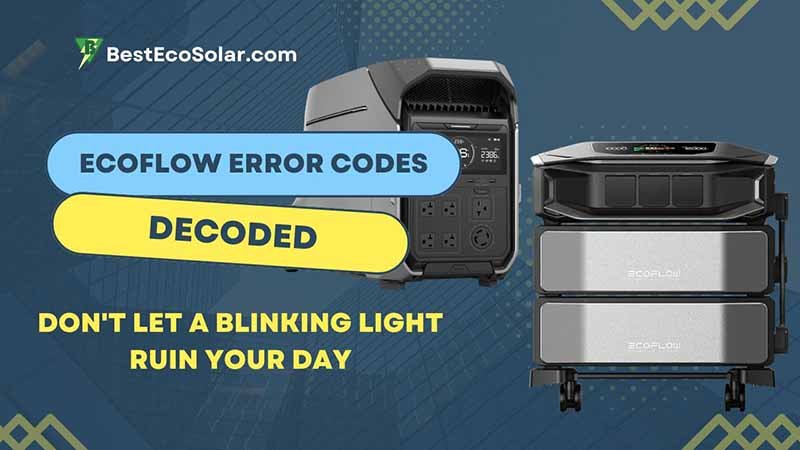
EcoFlow Error Codes: Don’t Let a Blinking Light Ruin Your Day
EcoFlow Error Codes – Let’s be honest. There are few modern heart sinks quite like seeing an unexpected error code flash on a device you’re relying on. Whether you’re powering a mini-fridge in your campervan, keeping the lights on during an outage, or running tools off-grid, that little screen on your EcoFlow transforms from a source of comfort to a source of instant anxiety.
What does it mean? Is it broken? Did I just waste all that money?
Take a deep breath. I’ve been there—both as a user and as someone who’s helped dozens troubleshoot these very issues. More often than not, that error code isn’t a death sentence; it’s your EcoFlow’s way of saying, “Hey, I need a little help here.”
In this guide, we’re going to demystify the most common culprits, especially the infamous Error 3, and turn you from a panicked user into a confident troubleshooter.
What Is an EcoFlow Error Code?
An EcoFlow error code is part of a built-in diagnostic system that helps you quickly identify issues without opening the device. It’s like having a built-in technician—constantly monitoring performance and alerting you when something needs attention.

The EcoFlow Error 3 Deep Dive: It’s Not Always What You Think
1. What Exactly is Error 3 on an EcoFlow?
Think of your EcoFlow as a brilliant, safety-conscious orchestra conductor. It’s constantly monitoring the flow of electricity (the music) from sources like solar panels or a wall outlet (the musicians) to the battery and then to your devices (the audience). Error 3 is essentially the conductor’s “stop everything” gesture when the input current from charging is too high.
It’s an input overcurrent protection error. In simpler terms, the power trying to charge the unit is surging beyond safe limits, so the EcoFlow slams on the brakes to protect its internal circuitry. This is different from an overload error, which we’ll get to later—that’s about output to your devices.
2. EcoFlow Wave 2 and MPPT Specifics: A Special Note
For EcoFlow Wave 2 portable air conditioner owners, seeing an E3 can be extra frustrating. Here, Error 3 typically points to a communication glitch between the main unit and the remote control or the battery pack. It’s less about raw power and more about a “hey, I can’t talk to my other half” scenario.
And for the tech-curious asking about Error 3 on the MPPT (Maximum Power Point Tracker), you’ve hit on the core! The MPPT is the brains behind solar charging.
An E3 here is that same input over-current warning, specifically related to the solar input. It means the solar array is potentially delivering more amps than the controller is rated to handle, possibly due to a configuration issue or, rarely, a faulty controller.
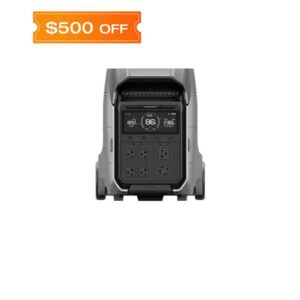
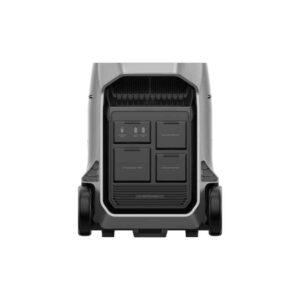
Your Step-by-Step Battle Plan to Solve an E3 Error
Don’t just start unplugging things randomly. Follow this logical flow. I’ve used it myself when my Delta Pro threw an E3 during a hefty solar setup test.
Step 1: The Immediate “Power Cycle” Trio
- Stop All Charging: Unplug every input source—solar panels, AC wall charger, car charger.
- Turn the EcoFlow Off: Use the main power button. Let it sit for a full 60 seconds. This allows its internal systems to fully reset.
- Reconnect Cautiously: Turn it back on. First, plug in only one charging source (try the AC adapter first, as it’s the most stable). If it charges normally, the issue is likely with another source.
Step 2: Source Investigation
- If Using Solar: This is the most common culprit for E3. Check your panel configuration. Are you connecting panels in series that should be in parallel, creating a voltage surge? Did you exceed the max solar input voltage for your model? Double-check the specs in the manual—this is where most DIY solar setups trip up.
- If using AC/DC: Try a different wall outlet or car socket. A faulty circuit can sometimes cause irregular current.
Step 3: The Cable and Connection Audit
Inspect every cable and port for damage, dirt, or bent pins. A poor connection can cause intermittent spikes that trigger protection errors. Try a different XT60 or MC4 cable if you have a spare.
A Real-World Case Study: The Camper’s Conundrum
I remember helping a couple, Sarah and Mark, who were living the van life. Their new 400W solar setup kept tripping Error 3 on their Delta Max.
They were sure the unit was defective. After walking them through the steps, we discovered the issue: they had connected their two 200W panels in series (doubling the voltage to ~80V) but had accidentally purchased panels with unusually high open-circuit voltage (Voc).
On a cold morning, that voltage spiked past the Delta Max’s 150V input limit, triggering the E3. The fix? Simply rewiring the panels in parallel kept the voltage safe, and the error vanished. No new machine needed.
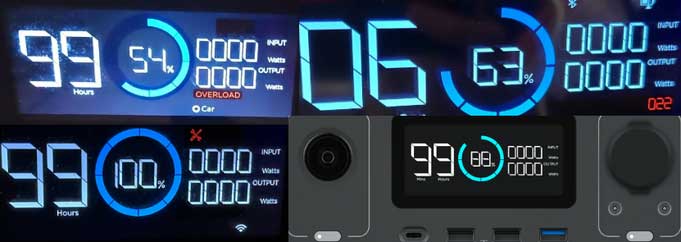
Does an E3 Error Mean You Need a New Machine?
Almost certainly not. This is the biggest misconception I fight. Error 3 is a protective alert, not a failure announcement. It’s your EcoFlow doing its job—preventing damage from incorrect setup or external factors.
You would only suspect hardware failure if:
- The error triggers instantly with every charging source, including a known-good AC cable.
- All troubleshooting steps are exhausted, and other charging sources (e.g., a friend’s solar panel) work fine on their unit but cause an E3 on yours.
Only then would you contact EcoFlow support. In 90% of cases, the fix is in your setup, not the unit itself.
Here’s a simplified table of the most common EcoFlow error codes:
| Error Code | Meaning | Cause | Fix |
|---|---|---|---|
| E01 | Overvoltage | Input voltage too high | Disconnect the input & use the correct charger. |
| E02 | Overcurrent | Too much load | Reduce connected devices. |
| E03 | Short Circuit | Wiring issue | Disconnect and inspect cables. |
| E04 | Low Voltage | Battery too low | Recharge the unit |
| E05 | Overheat | High temperature | Let the device cool down. |
| E06 | Fan Error | Cooling failure | Check ventilation. |
| E07 | Battery Fault | Battery issue | Contact support. |
| E08 | Inverter Fault | Internal error | Restart or service |
Most Common EcoFlow Error Codes (And How to Fix Them)
1. EcoFlow Error Code E01 Fix
Problem: Overvoltage
Solution:
- Unplug all inputs
- Use official chargers only.
- Avoid overpowered solar panels.
2. EcoFlow Error Code E02 Fix
Problem: Overload
Solution:
- Disconnect high-wattage devices
- Avoid running multiple heavy appliances.
3. EcoFlow Error Code E05 Fix
Problem: Overheating
Solution:
- Move the unit to a cooler location.
- Ensure airflow is not blocked.
- Wait until the temperature drops.

Beyond E3: Understanding the World of System Error Codes
1. What Even Are Error Codes?
Imagine your car’s check-engine light. It’s useless if you don’t have an OBD2 scanner to read the specific code. EcoFlow error codes are the same—they’re a precise language between the machine and the technician (you!). They replace “something’s wrong” with “Input Amperage Exceeded (Code 3).” That’s powerful.
2. The Great Divide: 400 vs. 500 Errors (A Web Analogy)
While not exactly how EcoFlow Error Codes work, this is a brilliant analogy for understanding system errors broadly.
- Client Errors (400s): “You messed up.” Like a 404 “Page Not Found.” In EcoFlow terms, this is an E3 (wrong input), an overload (too many devices), or a low-voltage error (using a device it can’t support). The problem is with the request or the user’s action.
- Server Errors (500s): “I messed up.” Like a 500 “Internal Server Error”. These are rarer on EcoFlow but would indicate an actual internal fault in the BMS, fan system, or inverter. These might require service.
3. The 4 Types of Systematic Error (In Science & In Your Setup)
This framework helps diagnose any tech problem:
- Instrumental: Is your gear faulty? (A damaged solar panel).
- Observational: Did you misread the specs? (Overlooking the max solar input voltage).
- Environmental: Did the cold weather cause a voltage spike? (Like our case study).
- Theoretical: Is your fundamental setup wrong? (Using series vs. parallel incorrectly).

4. EcoFlow Delta Pro Error Codes
| Code# | Possible Reasons | Recommended Actions |
|---|---|---|
| 1 | battery undervoltage | Recharge in time. |
| 9 | high-temperature discharging | Automatic recovery after battery temperature drops |
| 10 | Discharge at low temperature | Automatic recovery after battery temperature rises |
| 11 | high-temperature charging | Automatic recovery after battery temperature drops |
| 12 | low-temperature charging | Automatic recovery after battery temperature rises |
| 77 | The cell pressure difference is too large, and the permanent fault | Press and hold the button to turn it off, and wait for more than half an hour to turn it on again. If the battery icon disappears, you can use it again. If the battery icon still exists, it is recommended to contact the after-sales service. |
| 104 | Inverter overvoltage alarm | Charging and discharging are prohibited; contact customer service |
| 105 | Inverter undervoltage alarm | Charging and discharging are prohibited; contact customer service. |
| 109 | Inverter output short circuit alarm | Check electrical equipment for short circuits. |
| 110 | Inverter output overload alarm | Remove overloaded devices and restart the machine to restore |
| 114 | Inverter module high-temperature alarm | The temperature is too high; please use it after cooling. |
| 115 | Inverter module low-temperature alarm | The temperature is too low. Please use it after recovery. |
| 121 | Inverter short circuit | Please contact customer support |
| 117 | The inverter soft start failed. | Restart the whole machine. If it still shows the code, please contact customer service |
| 208 | 12V output overcurrent protection | Please contact customer support. |
| 212 | Solar charging overtemperature protection |
The temperature is too high; please use it after it cools down. |
| 213 | Solar charging at low temperature protection |
The temperature is too low; please use it after it returns to normal temperature. |
| 221 | Fan is abnormal. | Check the fan for foreign object obstruction. |
| 302 | BMS lost contact. | It will appear when upgrading the firmware. After the whole machine is upgraded, restart it. If it still does not solve the problem, it is recommended to contact customer service. If it appears during normal use with DELTA Pro, disconnect the cord and long-press the power button of DELTA Pro for 10 seconds to reset. |
| 303 | INV lost contact. | It will appear when upgrading the firmware. After the whole machine is upgraded, restart it. If it still does not solve the problem, it is recommended to contact customer service. If it appears during normal use with DELTA Pro, disconnect the cord and long-press the power button of DELTA Pro for 10 seconds to reset. |
| 304 | MPPT lost contact. | It will appear when upgrading the firmware. After the whole machine is upgraded, restart it. If it still does not solve the problem, it is recommended to contact customer service. If it appears during normal use with DELTA Pro, disconnect the cord and long-press the power button of DELTA Pro for 10 seconds to reset. |
| 553 | Failed to connect to 2 DELTA Pro | Disconnect the Double Voltage Hub and restart the units. |
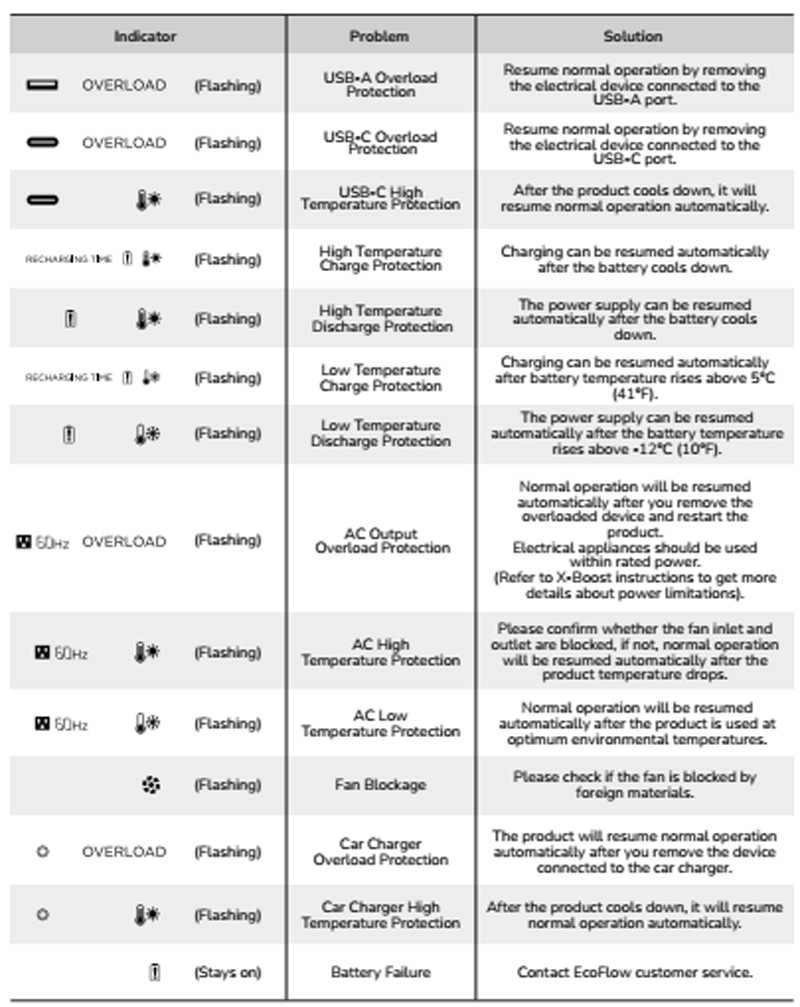
5. EcoFlow Error Codes List: Delta Pro Ultra
| Error code | Error description | Cause | Suggestion |
|---|---|---|---|
| 66 | Communication failure with EcoFlow Smart Home Panel 2 | Internal communication failure. | Contact after-sales service if a forced shutdown doesn’t work. |
| 94 | Communication failure | The EV charger hasn’t received data from DELTA Pro Ultra after 5 seconds. | • Plug in the EV X-Stream adapter again. • Please contact after-sales service if the problem persists. |
| 103 | DC output port overcurrent | DC output port short-circuit or overload. | • Check if the DC output port is short-circuited or check the spec of the load connected to the port (12.6V/30A). • Re-enable the DC output. • Contact the after-sales service if a forced shutdown doesn’t work. |
| 171 | Low-PV input overvoltage | The supply voltage of the connected solar panels is too high. | Ensure that solar panels are in good condition. |
| 177 | Weak sunlight protection for low-PV input | The connected solar panel(s) has/have insufficient power. | When there is sufficient sunlight, reconnect the solar panels. |
| 274 | AC charging input port overcurrent | Power of loads higher than specifications. | Lower the output load and plug in the AC charging cable again. |
| 297 | L2 bypass overload | Power of loads higher than specifications. | Lower the output load and plug in the AC charging cable again. |
| 402~408 | AC output socket 1-7 overload | AC output socket overload. | Ensure the loads connected to the ports meet the specs. |
| 433 | Current overload | Overcurrent at the output port of the EcoFlow 50 Amp Hub. | Replace with loads of lower power or reduce the number of loads. |
| 457 | Weak sunlight failure | Insufficient sunlight. | • Ensure that solar panels are in good condition and there is sufficient sunlight. • Plug solar panels in the high-PV input port again or reboot the device. |
| 509 | High discharging temperature | The battery temperature is too high. | Charging can be resumed automatically after the battery temperature cools down. |
| 510 | Low discharging temperature | The battery temperature is too low. | Charging can be resumed automatically after the battery temperature rises. |
| 511 | High charging temperature | The battery temperature is too high. | Charging can be resumed automatically after the battery temperature cools down. |
| 512 | Low charging temperature | The battery temperature is too low. | Charging can be resumed automatically after the battery temperature rises. |
| 523 | Charging level protection | ||
| 524 | Discharging level protection |
Read: Bluetti Error Code
Conquering the Overload: How to Reset and Reset Smartly
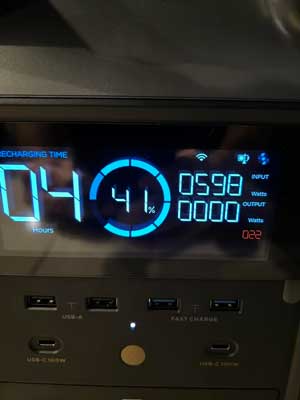
1. What is an overload error?
This is the output counterpart to Error 3’s input warning. You’ve plugged in too many or too power-hungry devices, and the EcoFlow’s inverter is saying, “I can’t safely supply this much power.”
2. How to Reset Your EcoFlow from an Overload Error
This is usually straightforward:
- Unplug ALL devices from the EcoFlow’s outlets.
- The unit should automatically clear the error after a few seconds. If not, power it off and on.
- The crucial step: Before re-plugging, add up the starting watts (surge power) of your devices, especially motors and compressors (fridges, tools). That number must be below your EcoFlow’s surge rating.
- Plug devices back in one by one, starting with the most essential.
3. The Overload Reset Button Myth
Many wonder about a physical “overload reset button” like on old generators. Most EcoFlow units don’t have one—it’s all digital. The process above is your reset. For generators or relays, that button physically trips a circuit breaker; here, the software does it instantly.
The Ultimate Reset Arsenal: From Reboot to Factory Fresh
Sometimes, you need a deeper reset to clear gremlins in the system.
1. How to Reboot (Soft Reset):
Just hold the power button down for 3-5 seconds until the screen goes black and reboots. This fixes most minor glitches.
2. How to Factory Reset Your EcoFlow:
Warning: This erases all your custom settings (like UPS mode and AC charge speed).
- Go to the main screen or app.
- Navigate to Settings > System > Reset or Factory Reset.
- Confirm your choice. The unit will cycle power and boot up like it’s brand new.
Alternate:
- Hold the IOT/Reset Button and Power Button for 30 seconds
- Release when the screen flashes
- The system reboots.
This solves:
- Firmware glitches
- Sensor bugs
- App syncing issues
- Stuck error codes
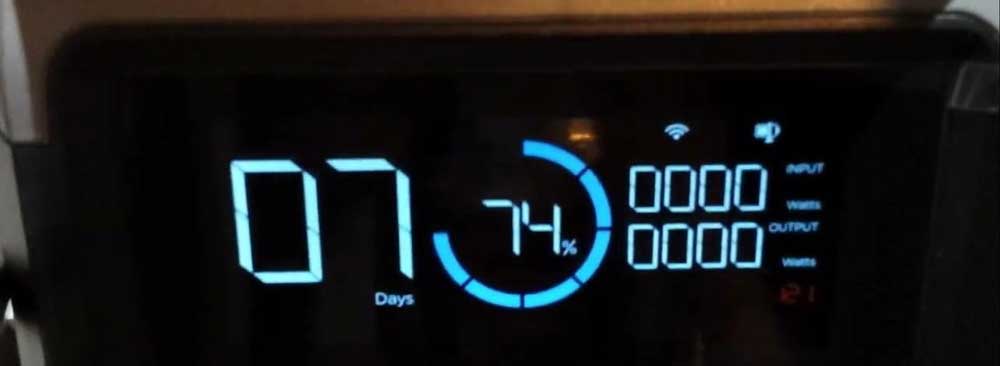
3. How to Reset the Battery (BMS Reset):
If the battery level seems wildly inaccurate, a BMS reset can recalibrate it. On many models, you can do this by letting the unit drain to 0% and shut off automatically, then charging it to 100% uninterrupted. Consult your manual for the specific recommended procedure.
4. My Insider Tip: The Forced Reset (When All Else Fails)
If the screen is frozen and unresponsive:
- Disconnect ALL inputs and outputs.
- For models with a main switch on the side (like some River series), flip it off.
- For those without, press and hold the power button for a *full 10-15 seconds*. This sometimes forces a hard discharge of internal capacitors.
- Wait a minute, then restore power or flip the switch.

EcoFlow Delta Pro Error
Q: From Leticia Padilla: Our battery does not stay on even when plugged in at home; it doesn’t charge or doesn’t output. We are using strictly solar panels and only recharge the battery from a regular outlet when the weather is very cloudy for several days at a time.
We’ve had the system for a while now. I was unable to log in to my EcoFlow account since I first purchased the system, as the app does not allow my debit or credit card entry. Please let us know what we can do – gracias.
A: To get your EcoFlow Delta Pro working again, you need to perform a deep reset on its Battery Management System (BMS). Since you mainly rely on solar, the unit has likely suffered from a severe State of Charge (SoC) calibration error or has gone into deep hibernation protection.
Regarding the app, EcoFlow does not require a credit or debit card to create or log into an account. You may have accidentally downloaded a scam app or clicked a fraudulent link.
Follow this sequential guide to revive your system and sort out your account safely.
Read: Jackery Error Code List: The Complete Guide
1. Revive the EcoFlow Delta Pro (Deep BMS Reset)
When the battery refuses to stay on, charge, or output, the internal safety guardrails (BMS) are often locked up. Follow these steps exactly:
- Unplug Everything: Disconnect all solar panels, AC wall cables, and any appliances plugged into the front or back.
- Total Power Down: Turn the unit off entirely by holding down the main power button until the screen says “OFF” and completely goes blank.
- The Hibernation Period: Let the unit sit entirely alone and untouched for 30 to 60 minutes. This allows the internal processors to fully de-energize and clear error states.
- Hard System Reset: After the waiting period, press and hold down the main power button for 15 seconds. The screen will blink or flash, signifying that the BMS has reset.
- The Jumpstart Charge: Do not plug the solar panels back in yet. Take the Delta Pro to a standard home wall outlet. Ensure the AC charging speed switch on the back is flipped to Slow/Custom Charge (this prevents tripping standard 15A home breakers if the battery tries to pull maximum power). Plug it into the wall and leave it to charge uninterrupted until it reaches 100%.
2. Secure Your App Account (No Credit Cards Needed)
If you are being asked for financial details just to log in, you are using the wrong application or website.
- Delete Suspect Apps: Remove any app currently on your phone claiming to be EcoFlow that asks for a card.
- Download Official Software: Go directly to the official Apple App Store or Google Play Store and search for EcoFlow.
- Register/Login: Open the official app. You only need a valid email address and a password to create an account. Bypass or ignore any fields asking for anything else.
- Update Firmware: Once logged in, connect to your Delta Pro via Bluetooth/Wi-Fi. Check the settings immediately for a firmware update. EcoFlow regularly rolls out critical updates to fix solar charging bugs and power management faults.
3. Preventing This Issue Long-Term
- Monthly Grid Top-Off: Solar panel voltage naturally fluctuates depending on clouds and sunlight angles. This variation eventually confuses the battery’s internal calculations. Plug your unit into a home wall outlet to reach 100% at least once every 2 to 3 months to recalibrate its tracking boundaries.
- Minimum Voltage Check: Make sure your solar panel configuration outputs a combined voltage of at least 11V; otherwise, the Delta Pro will ignore the solar input completely.
If the screen remains black or continues turning off immediately after trying the 60-minute de-energizing reset, the internal lithium cells or the inverter board may have suffered a physical hardware failure requiring direct assistance from EcoFlow Support.
The One Maintenance Habit That Prevents a World of Hurt
EcoFlow Error Codes – My #1 often-overlooked tip? Perform a full 100% charge and a controlled near-drain (to about 20%) every 3 months. This isn’t just for battery health (though it’s great for that). This cycle forces the Battery Management System (BMS) to recalibrate.
A miscalibrated BMS can cause false error readings, inaccurate battery percentages, and premature low-power shutdowns that feel like errors. Think of it as a regular tune-up for your EcoFlow’s brain.
Conclusion: From Panic to Proficiency
EcoFlow Error Codes – The journey from seeing Error 3 as a terrifying hieroglyph to understanding it as a simple “slow down the input” sign is empowering. Your EcoFlow is a robust piece of engineering, designed with layers of protection. These error codes are its way of communicating within those safety walls.
So next time that little screen lights up with an E3 or an overload warning, don’t despair. Grab a cup of coffee and work through the logical steps: disconnect, investigate, and reconnect methodically. Remember Sarah and Mark’s solar panels. Remember that 9 times out of 10, the solution is in your setup, not in a repair shop. You’ve got this. Now go restore your power—and your peace of mind.
EcoFlow Stores
| United Kingdom | Italy | France | Spain | Germany | Canada | Australia | USA |
|---|---|---|---|---|---|---|---|
 |
 |
 |
 |
 |
 |
 |
 |
| View Special Offers | View Special Offers | View Special Offers | View Special Offers | View Special Offers | View Special Offers | View Special Offers | View Special Offers |
EcoFlow Error Codes FAQs
1. What Is EcoFlow Error 3?
Error 3 (E3) on EcoFlow usually indicates a charging-related fault, most commonly triggered by:
- Bad input power
- damaged cable
- Overloaded charging source
- inconsistent voltage
- overheating
Think of it like your power station saying, “Something is off with the incoming power. Please check the connection.”
While it can look scary, Error 3 is more of a warning than a failure.
2. What Does Error Code 3 Mean on EcoFlow Wave 2?
If you’re using an EcoFlow Wave 2 portable AC, Error Code 3 points to a fan motor malfunction, meaning:
- The fan can’t rotate properly.
- Something is blocking airflow.
- The fan motor has overheated.
- Internal dust or debris is obstructing movement.
Wave 2 is extremely sensitive to airflow, so even a partially blocked vent can trigger E3.
3. What Is Error 3 on MPPT?
If you see Error 3 specifically on the solar charging side, it means. Your solar input voltage or current is outside the safe range. MPPT controllers regulate solar energy. But when:
- Solar voltage spikes
- Cloud shadows cause rapid fluctuations.
- Panels are mismatched.
- Cables are too long.
The MPPT board protects itself and triggers Error 3.
4. Fixing MPPT Error 3 on EcoFlow
Here’s what to check:
- Verify Solar Voltage: Ensure your total voltage does NOT exceed your EcoFlow model’s limit.
- Use Matching Panels: Different brands or wattages can cause instability.
- Replace MC4 Connectors: Damaged connectors often cause resistance spikes.
- Remove Partial Shading: Even one shaded panel can cause solar irregularities.
- Shorten Solar Cable Length: Extra-long cables create a voltage drop, causing sensor errors.
You Might Also Like
References:
EcoFlow User Manual: https://www.ecoflow.com/us/support/download/index